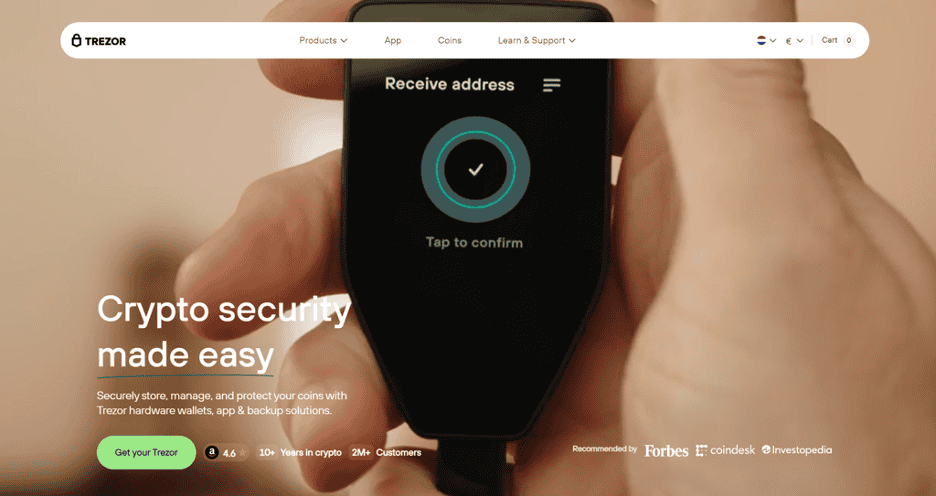
Trezor Login — Secure, Vertical Authentication for Your Wallet
What is Trezor Login?
Trezor Login is the cryptographic authentication method used to prove ownership of accounts and sign actions using your Trezor hardware wallet. Rather than relying on username/password pairs stored on remote servers, Trezor Login leverages keys derived and stored inside the device. Authentication requests are signed on-device and return a proof to the requesting website or application — the private keys never leave the Trezor, offering a robust protection model against remote theft.
Why the vertical layout helps
The vertical approach presents every login step stacked top-to-bottom so users can follow a straight, scrollable flow: open the app, connect the device, enter the PIN, review the request on-device, and confirm. This layout reduces cognitive load, improves mobile usability, and clearly separates each required action — which is especially helpful for new users performing secure operations for the first time.
How the login flow works (step-by-step)
- Open the app or site: Start the login on a service that supports Trezor authentication.
- Connect your Trezor: Plug it into USB (or use a supported mobile connection) so the browser or Trezor Suite can detect it.
- Enter your PIN: Type the PIN only on the device — never on the computer — to unlock access to the private keys.
- Review the request on-device: The device displays the challenge or transaction details. Inspect addresses, permissions, and any contract data.
- Approve to sign: Physically confirm the signature on the device. The signed proof returns to the site to complete login or authorization.
Security advantages
- Keys never leave the device: Private keys are generated and isolated inside Trezor's secure environment.
- On-device verification: You validate all sensitive details on the hardware screen, protecting against tampered web pages.
- Resistance to phishing: Because the device shows the exact data being signed, it’s much harder for malicious sites to trick you.
- Recoverable via seed: If the device is lost or damaged, accounts can be restored using the recovery seed on a new device — but never share the seed.
Best practices for safe Trezor Login
Always verify the domain of the site requesting a signature, and ensure you only download Trezor Suite or firmware from official sources. Never enter your recovery seed into a website or share it with anyone. Use a clean browser profile for crypto activities, disable untrusted extensions, and keep device firmware up to date. Consider using a passphrase for additional account separation — but remember passphrases are not recoverable if lost.
Troubleshooting common issues
If the site doesn't detect your device, try a different USB cable or port, unlock the Trezor and open the necessary app (e.g., Ethereum app for ETH-based interactions), and ensure your browser grants WebUSB/WebHID permissions. For persistent problems, restart the browser or Trezor Suite. Never follow troubleshooting steps that ask you to reveal your recovery seed.
Final thoughts
Trezor Login pairs hardware-backed security with a simple vertical user flow to make authentication both safe and intuitive. By always confirming details on the device and following best practices, you dramatically reduce the risk of unauthorized access. Use Trezor Login for a safer web3 experience — it’s security designed around the principle that you remain the sole controller of your keys.
Open Trezor Suite